

How to Redact Documents Without Leaving Personal Data Exposed

Knowing how to redact documents is an essential data protection skill, whether you are sharing a payroll report, responding to an information request or sending records to an external adviser. A black rectangle over a name is not enough if the recipient can copy the underlying text, reveal a hidden layer or open an embedded attachment.
Effective redaction removes information from the copy being disclosed, rather than simply covering it. This guide explains how Jamaican organisations can prepare, check and release documents without leaving personal data recoverable through ordinary document tools.
Why covering information is not the same as removing it
Digital documents contain more than the page you can see. A PDF may hold searchable text behind a scanned image, comments, form fields or attached files. A word-processing document may retain tracked changes, while a spreadsheet may contain hidden worksheets and cached information.
Visual editing can therefore create a misleading impression of security.
Method | Why it can fail | Safer approach |
Drawing a black rectangle over text | The underlying text may remain selectable or recoverable | Use a purpose-built redaction function that removes the selected content |
Changing text to white | The text still exists and may appear when selected or copied | Remove it from the disclosure copy and inspect for residual content |
Cropping a page or photograph | Some formats retain information outside the visible crop | Use a process that permanently removes excluded content and verify the output |
Hiding spreadsheet rows or columns | Recipients may unhide them | Create a separate disclosure file containing only approved information |
Printing to PDF or flattening a file | The output may still contain sensitive text or other content | Treat conversion as a preparation step, not proof of successful redaction |
Encryption and password protection serve a different purpose. They restrict access to a file, but an authorised recipient can still see whatever remains inside it. Use them alongside redaction where appropriate, not instead of it.
Decide what the recipient actually needs
Before editing, record the disclosure’s purpose, intended recipient and information they are entitled or authorised to receive. Redaction decisions should follow that assessment, rather than a habit of removing every name or leaving every financial field intact.
For example, when preparing records for an external adviser such as Reach Professional Accounting, an accounting and advisory firm in Oakville, agree the required fields first. A budget review might need department-level totals rather than named employees’ salaries. Payroll processing has different requirements, so the same redaction template will not suit both tasks.
If records will leave Jamaica, assess the applicable international transfer requirements separately. Redacting some fields does not automatically make a transfer permissible.
Jamaica’s Data Protection Act, 2020 makes the handling and security of personal data relevant throughout this process. Redaction can support those obligations, but it does not replace a lawful basis for disclosure, appropriate access controls or retention rules. The Office of the Information Commissioner is the relevant Jamaican regulatory authority.
Check whether the remaining context identifies someone
Names and identification numbers are only part of the assessment. A job title, small department, exact incident date and distinctive medical detail may identify an employee when combined.
Read the proposed disclosure from the recipient’s perspective. Consider what they already know and what they could reasonably connect with other available information. Removing a name does not necessarily make the record anonymous, a distinction explored in our guide to when data anonymity works and when it fails.
Where appropriate, replace unnecessary precision with a broader description, such as a month instead of an exact date. Keep enough information to preserve the document’s meaning and fulfil the disclosure’s purpose.
How to redact documents safely: a repeatable workflow
1. Preserve the source and create a controlled working copy
Keep the original in its authorised location with access restricted to those who need it. Create a separate working copy for redaction, using a filename that clearly distinguishes it from the source.
Preserving the source does not mean retaining it indefinitely. Apply the relevant retention schedule and any legal hold or recordkeeping obligation.
Use an organisation-approved tool with genuine redaction and hidden-content removal capabilities. Check that it supports the particular file type and content involved, including scanned pages where relevant.
Do not upload confidential records to a free online converter or redaction service without approval. Review how the provider handles access, storage, deletion, subprocessors and international transfers. A convenient upload button is not evidence of an acceptable processing arrangement.
2. Locate sensitive information throughout the document
Read the complete document, including appendices and supporting material. Search can help locate repeated names, email addresses, account numbers and identifiers, but it cannot replace a visual review.
Searches may miss misspellings, abbreviations, handwriting, text inside photographs and poorly recognised scans. A number might also appear with different spaces or punctuation.
Look beyond the main paragraphs. Personal data can appear in signatures, headers, footers, handwritten notes, photographs, QR codes and barcodes. A code may contain an identifier or link to a record even when the surrounding page looks harmless.
For scanned documents, optical character recognition (OCR) creates a searchable text layer. Review both the page image and any associated text layer. Removing visible pixels without addressing retained OCR text can leave the information exposed.
3. Apply redactions and remove hidden content
Use the tool’s redaction function to mark the relevant text or areas, then apply the redactions. Marking an area for removal is not necessarily the same as completing the removal.
Adobe’s guidance on removing sensitive content from PDFs explains the redaction process and options for removing hidden information. Menu names and capabilities vary between products, so follow the instructions for the approved tool and version your organisation uses.
Inspect the file for comments, attachments, form data, metadata, hidden layers and other content outside the visible page. Use the available sanitisation or hidden-information removal functions, then review the result. Automated cleaning can also remove information you intended to preserve.
Save the completed output as a new disclosure file. Keep any redaction log separate from that file, especially if the log records the information removed.
Redaction or sanitisation can invalidate an existing digital signature. Where a signed record matters, establish how authenticity and the relationship to the original will be documented before changing it.
4. Test the saved disclosure file
Close the editing session and reopen the actual saved file you intend to send. Where practical, inspect it in a second viewer so the review is not limited to the editing tool’s display.
Use several checks together:
Search for removed information: Try distinctive names, identifiers and relevant variations.
Test text extraction: Select and copy content around redacted areas, or extract the document’s text using an approved method.
Inspect every page visually: Check signatures, images, margins, repeated references and partially covered characters.
Review non-page content: Check attachments, comments, form fields, layers and document properties where the format supports them.
Confirm usability: Ensure the retained content remains understandable and that the correct pages are present.
A failed search is not proof that a file is safe. It may simply mean the information is stored as an image or was recognised incorrectly. Combine technical checks with human review, and use a second reviewer for sensitive or high-impact disclosures.
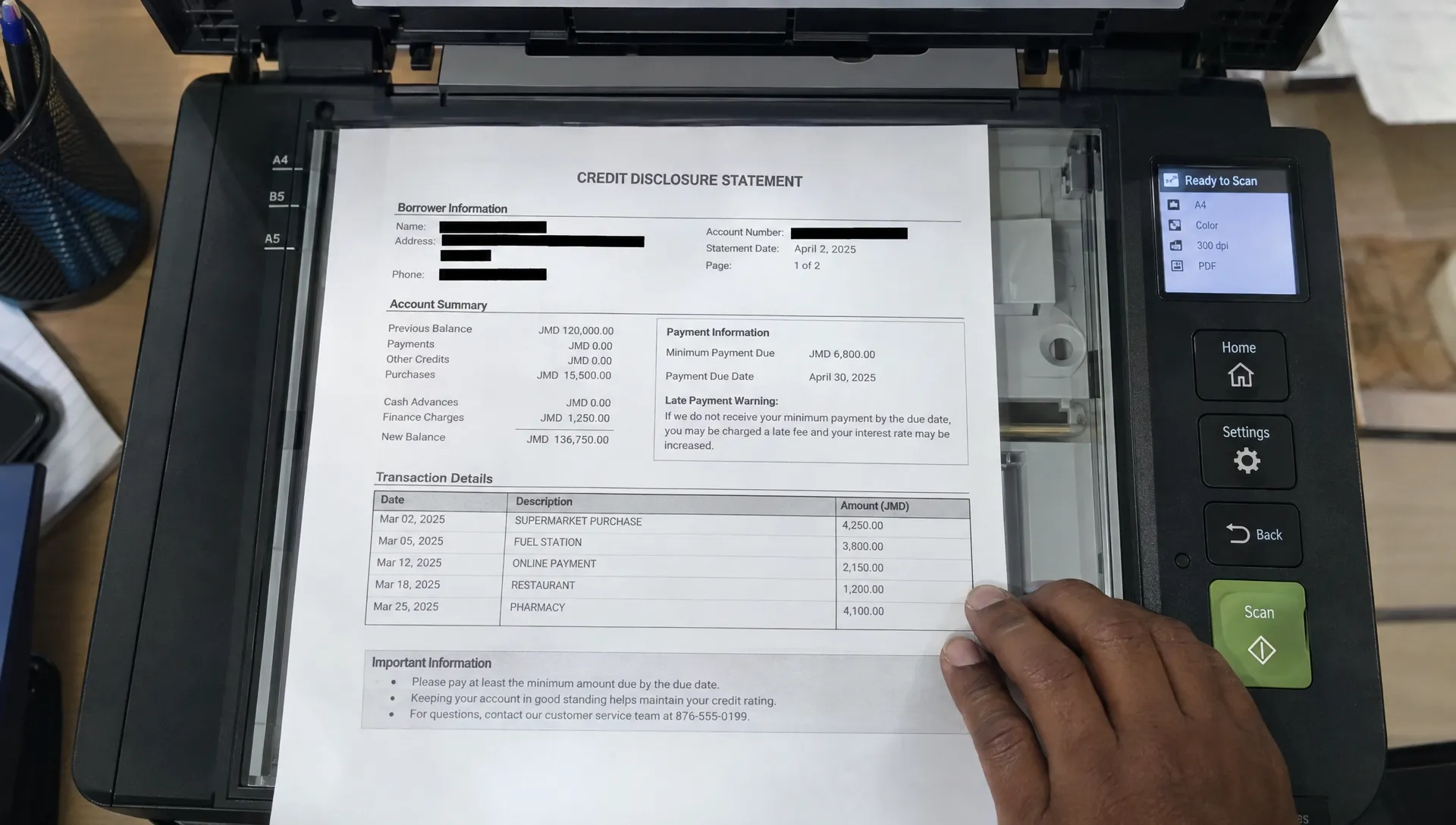
Handle office files and scanned records differently
A single redaction method will not suit every format. Choose the disclosure format according to what the recipient needs, not merely what is easiest to attach.
File type | Particular risks | Practical approach |
Word-processing document | Tracked changes, comments, document properties and embedded objects | Resolve revisions in a disclosure copy, remove unnecessary content and inspect the final file |
Spreadsheet | Hidden sheets, formulas, comments, links and cached data | Build a separate file containing only approved cells or values, then check it independently |
Scanned PDF | Sensitive pixels and an OCR text layer | Use redaction that addresses the image and associated text, then verify both |
Photograph or image | Location metadata, background details, reflections and identifying features | Permanently remove sensitive areas, inspect metadata and export a checked copy |
Email export | Earlier messages, recipient addresses, headers and attachments | Assess the entire exported record, including its attachments |
For spreadsheets, do not rely on hiding tabs or protecting a worksheet. Where the recipient needs figures rather than a functioning workbook, a carefully prepared values-only extract may reduce exposure. It still needs review for identifying labels, small groups and unnecessary detail.
For paper records, physically removing information or using an opaque covering before making a new scan can produce a disclosure copy, but inspect the scan carefully. Marker ink may remain readable through contrast changes or show-through. Never assume a black mark on the original guarantees a safe digital copy.
Release only the version that passed review
Successful redaction can still be undone by attaching the wrong file. Keep originals, working drafts and approved disclosure copies clearly separated, with access appropriate to each.
Immediately before release, confirm the recipient, filename, attachment contents and sharing permissions. Open the attachment or linked file from the outgoing message or sharing interface where practical. This helps catch mistakes that a review of a different local copy would miss.
Check the filename and message text too. A filename containing an employee’s name, medical condition or case details can disclose information removed from the document itself.
Use an approved delivery channel and restrict access to intended recipients. Passwords, expiring links and download restrictions may provide additional protection, but none makes a poorly redacted file safe.
Record who prepared the disclosure, who checked it, what was released and why. The audit record should identify the approved version without unnecessarily reproducing sensitive content. These responsibilities should sit within your organisation’s wider confidentiality and data-handling rules.
What to do if a redaction failure is discovered
Treat a recoverable redaction as a potential personal data incident, even if the page initially looked correct. Restrict further access where possible and escalate promptly to the designated privacy lead or data protection officer.
Establish what was exposed, who received or accessed it and whether copies may have been downloaded or forwarded. Preserve the relevant evidence. Ask recipients to stop using the affected version and arrange appropriate deletion or replacement, but do not assume that a recall request has removed every copy.
Assess any notification duties under applicable law and contractual arrangements. Replacing the file does not resolve that assessment or eliminate possible harm. Correct the underlying cause, whether it was tool misuse, a missed attachment, inadequate review or selection of the wrong version.
Frequently asked questions
Can I redact a PDF by drawing black boxes over the text? Not safely unless the tool actually removes the underlying content. An ordinary shape or annotation may only conceal it visually. Use a genuine redaction function, apply the changes and test the saved file.
Does converting a document to PDF remove personal data? No. Conversion may preserve names, metadata, searchable text and other sensitive content. The resulting PDF still needs an appropriate redaction and verification process.
Is a screenshot safe to share after redaction? A screenshot can still show identifying details, background information or incomplete coverings. It also does not clean the source file. Review the image being shared and check its metadata where relevant.
Should an organisation delete the original after redacting it? Not automatically. The original may remain necessary for legal, operational or evidential reasons. Restrict access and retain it according to applicable obligations and the organisation’s retention schedule.
Does redaction make a document anonymous? Not necessarily. Remaining details may still identify someone through context or linkage. Assess identifiability separately rather than treating the removal of names as sufficient.
Make redaction part of your data protection controls
A reliable process combines an approved tool, clear disclosure decisions, hidden-content checks and verification of the exact file being released. Staff also need to know when to seek a second review rather than making a judgement alone.
For support with the policies, training and compliance arrangements surrounding document disclosure, Privacy & Legal Management Consultants Ltd. offers data protection implementation, risk assessment tools and training for organisations in Jamaica, along with free consultations.